
If you’ve heard testers and developers talk about Playwright and wondered what the fuss is about, this guide is for you. So, what is Playwright? It’s a free, open-source tool from Microsoft that lets code open a real browser, click around a web app the way a person would, and check that everything works. It’s best known as a testing framework, but the same engine can automate almost anything you do in a browser.
This beginner’s guide explains what Playwright does, the handful of ideas that make it reliable, how it compares with Selenium and Cypress, and how to write and run your first test. You don’t need any testing background, only a little comfort with a terminal and some JavaScript or TypeScript.
What is Playwright? The short answer
Playwright is a framework for web testing and browser automation. Microsoft released it as an open-source project in 2020 under the Apache 2.0 license, and it’s developed in the open on GitHub. Several of its original authors had previously worked on Puppeteer, Google’s Chrome automation library (InfoQ covered the launch), and Playwright grew out of a simple goal: one API that works the same way across every major browser engine.
When people say “Playwright,” they usually mean one of two things:
- The Playwright library, which gives your code commands like “open this page,” “click this button” and “read this text.”
- Playwright Test (the
@playwright/testpackage), a full test runner built on top of the library. The official docs describe it as bundling the test runner, assertions, isolation, parallelization and rich tooling in one package.
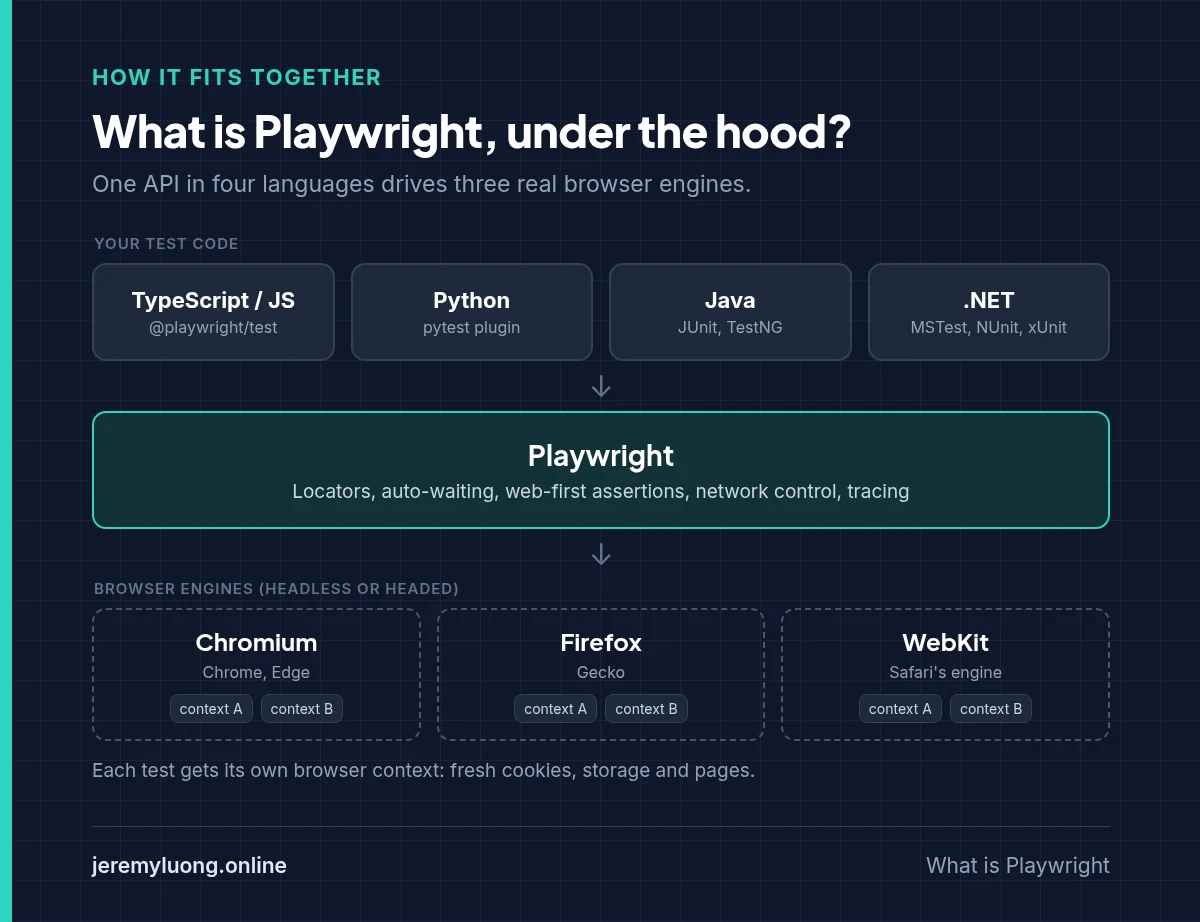
Playwright is available in four language families: JavaScript and TypeScript, Python, Java and .NET. All of them share the same core browser automation. The difference is the test ecosystem around them. Node.js projects get Playwright Test, Python projects usually use the pytest plugin, Java teams pick JUnit or TestNG, and .NET teams use MSTest, NUnit or xUnit.
On the browser side, Playwright drives three engines: Chromium (the engine behind Chrome and Microsoft Edge), Firefox and WebKit (the engine behind Safari). It runs on Windows, macOS and Linux, on your laptop or in CI, with the browser window visible (headed) or hidden (headless). It can also emulate mobile browsers such as Chrome on Android and Mobile Safari by setting the screen size, user agent and touch support.
What people use Playwright for
Testing is the headline, but Playwright automation covers more ground than most beginners expect:
- End-to-end (E2E) testing. Walk through real user journeys such as signing up, searching or checking out, and confirm the app behaves correctly from the browser’s point of view.
- Cross-browser testing. Run the same test against Chromium, Firefox and WebKit to catch bugs that only show up in one engine.
- API testing. Playwright can send HTTP requests directly, without a browser, through its request API. That’s handy for setting up test data or checking a backend on its own.
- Visual checks. Screenshot comparisons flag unexpected changes in how a page looks.
- General browser automation. Filling in forms, taking screenshots or generating PDFs of pages, and other repetitive browser chores.
The core ideas behind reliable Playwright automation
Browser tests have a reputation for being slow and flaky, meaning they pass one run and fail the next with no code change. Most of that pain comes from timing and shared state. Playwright’s design attacks both. Five ideas do most of the work.
1. Locators: find elements the way users do
A locator describes how to find an element on the page. Playwright encourages locators based on what a user can see or what assistive technology reads, rather than fragile CSS paths. For example, page.getByRole('button', { name: 'Sign in' }) finds a button by its role and accessible name, and page.getByLabel('Email') finds an input by its label. If a developer renames a CSS class, these locators keep working. As a side effect, they nudge your app toward better accessibility.
2. Auto-waiting: no more sleep()
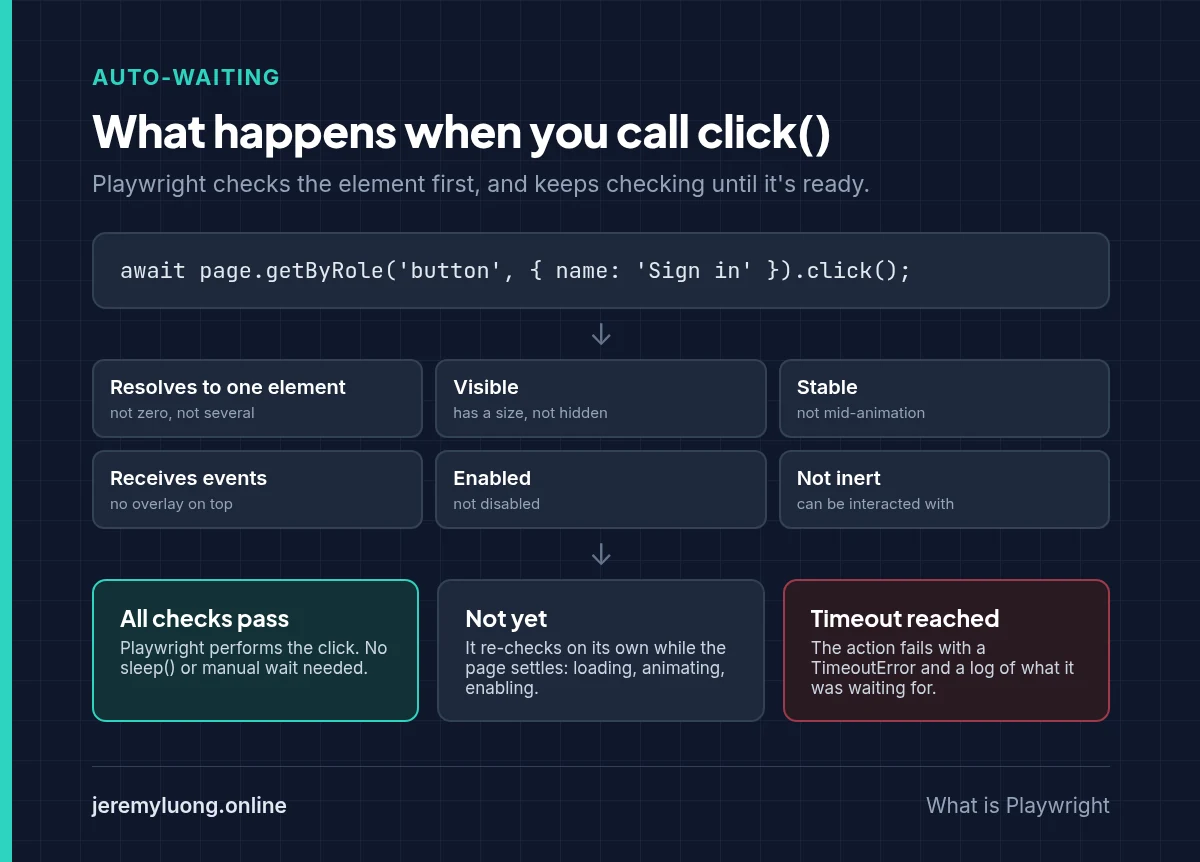
Older browser tests are full of hard-coded pauses like “wait two seconds, then click,” because the page might not be ready yet. Playwright auto-waits instead. Before it clicks, it checks that the locator points to exactly one element and that the element is visible, stable (not mid-animation), able to receive the click (nothing covering it), enabled and not inert. If a check fails, Playwright keeps retrying until the element is ready or the timeout runs out.
3. Web-first assertions: checks that retry
An assertion is the part of a test that says what should be true. Playwright’s web-first assertions retry automatically until the condition is met or the timeout runs out. await expect(page.getByText('Welcome back')).toBeVisible() doesn’t fail just because the text appears 300 milliseconds after the check starts. That one feature removes a whole class of timing bugs from tests.
4. Test isolation with browser contexts
Playwright runs each test in its own browser context, which the docs compare to a fresh incognito-like profile. Every test gets its own cookies, local storage and session storage, so one test can’t leave a logged-in session or a full cart behind for the next one. Contexts are fast and cheap to create, and a single test can even open two contexts to simulate two users, such as an admin and a customer, at the same time.
5. Parallel runs by default
Playwright Test runs test files in parallel worker processes, and each worker starts its own browser. A suite that would take ten minutes one test at a time can finish in a fraction of that. When one machine isn’t enough, you can split a suite across several CI machines with sharding. Parallelism is built in and free, with no paid service required.
Playwright vs Selenium vs Cypress at a glance
Playwright isn’t the only option. Selenium and Cypress are both mature, widely used tools, and each one makes different trade-offs.
| Playwright | Selenium | Cypress | |
|---|---|---|---|
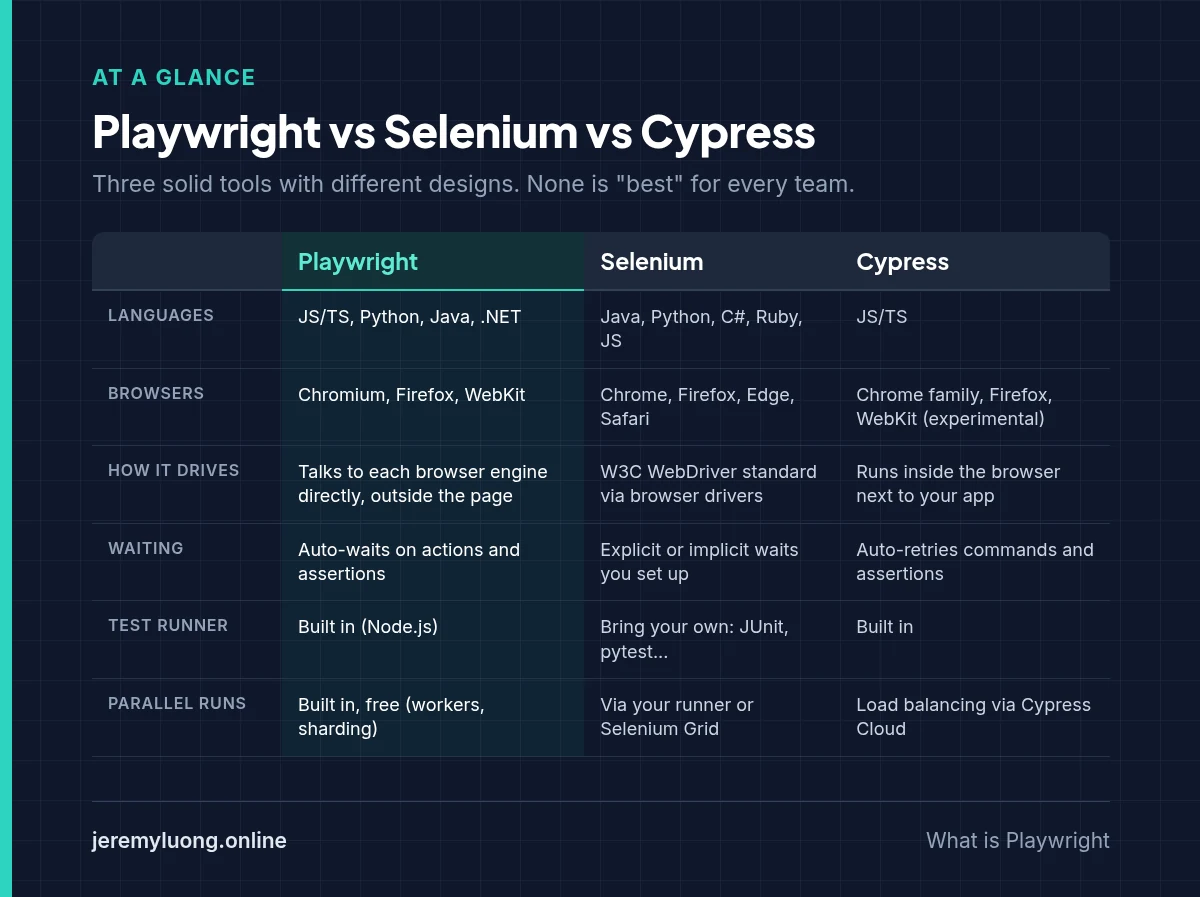
| Languages | JS/TS, Python, Java, .NET | Java, Python, C#, Ruby, JavaScript | JavaScript and TypeScript |
| Browsers | Chromium, Firefox, WebKit | Chrome, Firefox, Edge, Safari | Chrome family, Firefox, WebKit (experimental) |
| How it drives the browser | Talks to each browser engine directly, outside the page | W3C WebDriver standard via browser drivers | Runs inside the browser next to your app |
| Waiting | Built-in auto-waiting | Explicit or implicit waits you set up | Built-in retries |
| Test runner | Included (Node.js) | Bring your own | Included |
| Parallel runs | Built in, free (workers, sharding) | Via your runner or Selenium Grid | Load balancing via Cypress Cloud |
Selenium is the long-standing standard. It uses the W3C WebDriver protocol, works with the branded browsers your users install, and has the widest language support. Cypress runs inside the browser next to your app, which gives it a very approachable interactive runner. Playwright drives the browser from the outside and controls each engine directly, which is how it handles multiple tabs, multiple users and cross-origin flows in one test without extra plugins.
If you’re weighing a switch from Selenium, Playwright vs Selenium goes much deeper into the architecture and the decision criteria.
How to get started with Playwright
Here’s the quickest path to a working test with Playwright Test and TypeScript. At the time of writing, Playwright supports Node.js 22, 24 or 26, as listed in its system requirements.
Step 1: Create a project
Open a terminal in an empty folder (or an existing project) and run:
npm init playwright@latestThe installer asks a few questions: TypeScript or JavaScript (TypeScript is the default), the name of your tests folder, whether to add a GitHub Actions workflow, and whether to download the browsers. Accepting the defaults is fine. When it finishes, you’ll have a playwright.config.ts file for settings like browsers, timeouts and retries, and a tests/example.spec.ts file with a starter test.
Step 2: Write your first test
Replace the contents of tests/example.spec.ts with this:
import { test, expect } from '@playwright/test';

test('has title', async ({ page }) => {
  await page.goto('https://playwright.dev/');

  // The page title should contain "Playwright".
  await expect(page).toHaveTitle(/Playwright/);
});

test('get started link opens the installation page', async ({ page }) => {
  await page.goto('https://playwright.dev/');

  // Find the link the way a user would: by its role and visible name.
  await page.getByRole('link', { name: 'Get started' }).click();

  // This assertion retries until the heading shows up.
  await expect(page.getByRole('heading', { name: 'Installation' })).toBeVisible();
});
Read it top to bottom and it almost explains itself. Each test receives a fresh page in its own browser context, opens the Playwright website, and checks something a real visitor would care about. There’s no waiting code anywhere. Auto-waiting and web-first assertions handle the timing.
Step 3: Run it
npx playwright testBy default, the tests run headless and in parallel across Chromium, Firefox and WebKit, so those two tests run six times in total. A few useful variations:
npx playwright test --headed            # watch the browser while it runs
npx playwright test --project=chromium  # run one browser only
npx playwright show-report              # open the HTML report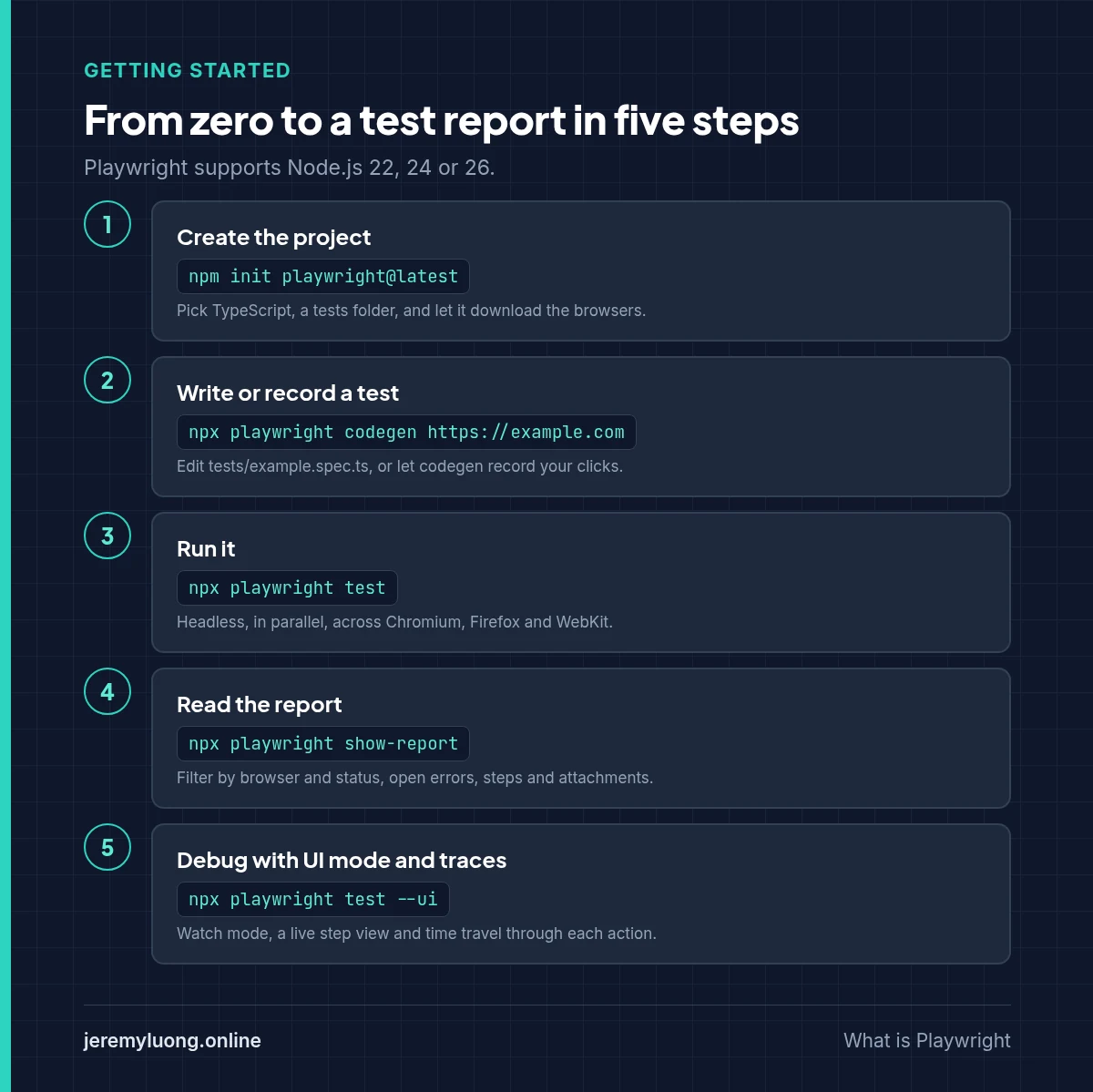
The tools that come with Playwright
Part of Playwright’s appeal is the tooling that ships in the box. You don’t need extra plugins to get started with these:
- Codegen. Run
npx playwright codegen https://example.com, click around, and Playwright writes the test code for you, picking sensible locators as you go. It’s a great way to learn the API, even if you tidy the output afterward. - UI mode.
npx playwright test --uiopens an interactive window with watch mode, a live view of each step, and time-travel debugging through every action. - Trace Viewer. A trace records a test run: DOM snapshots, network calls, console logs and the exact locator used for every step. When a test fails in CI, the trace often shows why without you reproducing it locally.
- HTML report. A dashboard you can filter by browser and by passed, failed, skipped or flaky tests, with errors, steps and attachments for each one.
- VS Code extension. Run, debug and record tests straight from the editor.
Playwright and AI agents
Playwright has also become a popular way for AI coding assistants to use a browser. The Playwright MCP server lets an assistant that supports the Model Context Protocol open pages, read them and interact with them. Since version 1.56, Playwright also ships Playwright Test Agents: a planner that explores an app and writes a test plan, a generator that turns the plan into test files, and a healer that runs failing tests and tries to repair them.
These are useful helpers, not a replacement for understanding your tests. Generated tests still need a human to review what they check and why. That gets much easier once you know the basics in this guide.
When Playwright might not be the right fit
Playwright is a strong default for testing modern web apps, but it’s not the answer to everything:
- Native mobile apps. Playwright tests websites, including mobile emulation in desktop browsers. For native iOS or Android apps, look at a tool like Appium.
- Branded Safari on real devices. Playwright’s WebKit is the engine Safari is built on, which catches most Safari issues, but it isn’t the same as testing the Safari app on a real iPhone.
- Large, healthy existing suites. If a Selenium or Cypress suite is stable and trusted, rewriting it just to follow a trend rarely pays off.
- Non-coders. Codegen lowers the barrier, but Playwright is still a code-first tool. Teams that want pure no-code testing will find other products a better fit.
What to learn after the basics
Once your first tests are running, these guides are the natural next steps:
- Playwright fixtures explained: how to share setup, like a logged-in user, without copying code between tests.
- How to handle flaky tests in Playwright: a step-by-step triage process for tests that pass and fail at random.
- Contract testing vs E2E testing: which checks belong in browser tests and which belong closer to the API.
- Playwright vs Selenium: a deeper comparison if you’re choosing between the two.
FAQ
Is Playwright free?
Yes. Playwright is open source under the Apache 2.0 license. The test runner, the browsers it downloads, parallel runs, codegen, UI mode and the Trace Viewer all cost nothing.
Is Playwright only for testing?
No. Playwright Test is built for testing, but the underlying library can automate any browser task, such as filling in forms, taking screenshots or saving pages as PDFs.
Which language should a beginner use with Playwright?
TypeScript gets the fullest experience, because Playwright Test, UI mode and most examples in the docs are built around Node.js. If your team already works in Python, Java or C#, using that language is perfectly reasonable.
Do I need to know how to code to use Playwright?
Some coding helps. Codegen can record a test for you, but you’ll want to read and adjust the code it writes. Basic JavaScript or TypeScript is enough to start.
Is Playwright better than Selenium?
It depends on your situation. Playwright offers auto-waiting, built-in parallelism and modern tooling out of the box. Selenium offers the broadest language and real-browser support plus a huge ecosystem. Many new projects pick Playwright, while many established teams stay productive with Selenium.
Can Playwright test mobile apps?
Playwright can test mobile websites by emulating devices such as an iPhone or a Pixel phone, including screen size, user agent and touch. It doesn’t test native mobile apps.